Showing posts with label counter. Show all posts

Saturday, 14 May 2011

Traits for Counters

What are Traits and what have they to do with counters?

The simple answer is that they bring the counter to life and change it from being a simple image to being something interactive.

A Trait is like a behaviour and by assigning traits to a counter the counter can 'do' a lot of things that you would normally do with a counter if you were playing against a real opponent face-to-face.

Probably the best way to explain this is the relatively simple but essential trait called Delete.

When you play a real-life game with physical counter components and a combat result means that the counter is destroyed and removed from play, what do you do? You simply pick it up, remove it from the board, and put it back into the game-box.

Well, how do you do that with a 'virtual' counter? You can't. It isn't physical, there is nothing to pick up! However, you can still 'emulate' what you would do in real-life by assigning the 'Delete Trait' to that counter. This allows you to right-click on the counter and to be given the option to delete the counter from the board. Select the trait and the piece disappears just as if you had picked it up and removed it yourself.

Here is the South Dakota. The counter at the top is in it's normal state. The counter at the bottom has been right-clicked and displays the option to 'Delete'. You can now click on that option or press CTRL+D and the counter will be removed from play.

Similarly, in a game, if you wanted to turn your counter to face in another direction you would simply turn it around but how do you do that with a virtual counter? Again, you give the counter a 'Can Rotate' trait which allows you to right-click on the counter, and then click on the trait menu, and rotate the counter - simple.
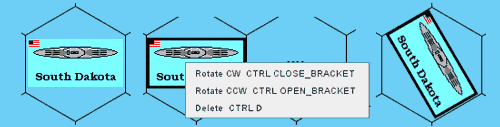
Here is the South Dakota again. On the left is the counter in it's ormal state. In the middle, the counter has been right-clicked and is displaying the Traits menu. Depending on which option you click on (or which keyboard combination you press) the South Dakota can now be rotated clockwise or anti-clockwise as well as being deleted. On the right, the South Dakota has been rotated clockwise 1 hex-face.

This is why Vassal is superb for playing games on-line. Traits allow you to manipulate the digital-counter as you would a counter in real-life.

However, that is not all that Vassal can do. For instance, let's say that you are playing a real-life game and your counter takes what is known as a step-loss, you would replace the counter with either a weaker counter or 'flip' the counter over to reveal it's weaker side. Again, by using the 'Layer' trait you can do this to counters on the Vassal map-board.

This is of courswe only a very brief introduction to Traits and I will go into them in more detail in later posts.

Tuesday, 10 May 2011

Creating Ship Counters

Having found a simple way to create a Tactical map for Naval engagements it was necessary to start giving thought to the counters that would be needed in order to 'play' the game.

I wanted to get some information on the counter as well as a top-down image of a ship. The problem here was that the ship types I needed to be represented ranged in size from huge Battleships to tiny Corvettes, so I needed a series of top-down images. The images also had to be recognisibly of ships and although not exactly in 1:1200th scale there had to be a clear distinction between what was a Carrier and what was a destroyer.

I searched on-line for some suitable top-down images and it took my ages to find some. I eventually found a strip of images that were practically ideal. Unfortunately I could not ascertain who owned the image so I am unable to credit the owner (if you recognise them let me know).

For ease of use I created counters that were 1-hex wide for all ships although the ship images are themselves of different sizes depending on type.

As for information on the face of the counter I decided on only four items;

  1. The ship's type and ID.
  2. The ship's name
  3. A symbol indicating which side the ship belonged to
  4. The ship's main and secondary armament as well as an indication of whether or not that it carried torpedos.
All these pieces of information were placed on the counter from within Vassal and not as part of the image creation process in Photoshop. For those who are interested they were positioned and edited by using the Label Property.

So, the image of the Battleship below can be identified as a Battleship (BB). In the order of battle it is the first ship listed of that type (BB1). It is called the South Dakota and it belongs to the Blue player (indicated by the small blue square). It's main armament consists of 9x16" guns and it's secondary armament consists of 20x5" guns.

This is a counter representing the Battleship
USS South Dakota at actual game-size (100%)

For naval wargames this is a very limited amount of information. However, using Vassal you have a lot more flexibility than simply carrying information on the counter itself. One of the neatest things about Vassal is that it allows you to add all sorts of properties and behaviours to the counter as well as displaying information on the counter itself that can be edited. So, for instance, in only a couple of mouse-clicks the counter can be edited to become BB2, King George V, 10x14" and 16x5.25" armament.

It is the versatility of Vassal and what it offers in the way of manipulating counters that makes it so attractive.

Having found suitable ship images and designed the basic counter my next job was to use Vassal to create properties and behaviours for the counter so that it could be used as a naval unit in a wargame.